How to Build a Safe Intune Testing Lab
We cannot test corporate policies on our personal laptops. This guide documents how I built a virtual sandbox to safely enroll, manage, and break Windows 11 instances without risking my own hardware.
Scenario 1The Hypervisor Block
🔴 Problem
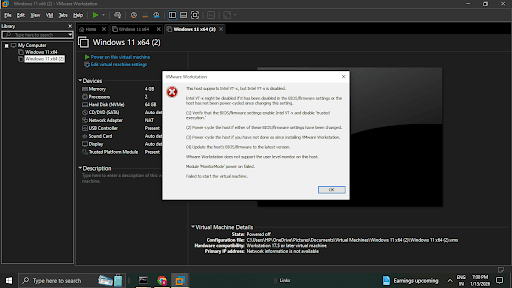
Upon attempting to boot the Windows 11 ISO in VMware Workstation, the VM immediately crashed.Error: "Intel VT-x is disabled."
Module 'MonitorMode' power on failed.
🟢 Action & Solution
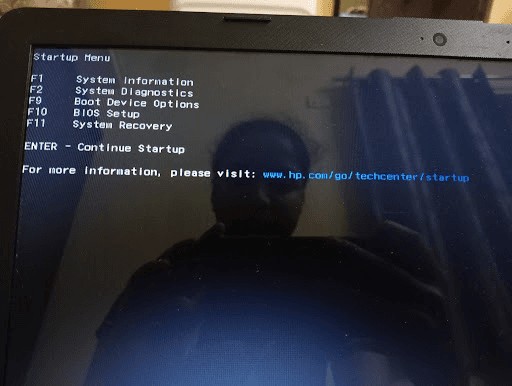
- 1.Access BIOS: Restarted the physical host and interrupted boot (F10 on HP) to enter the Startup Menu.
- 2.Enable Virtualization: Navigated to System Configuration and toggled Virtualization Technology (VTx) to Enabled.
- 3.Result: VMware could finally access the CPU's hardware virtualization extensions, allowing the 64-bit guest OS to boot.
Scenario 2The OOBE Loop
🔴 Problem
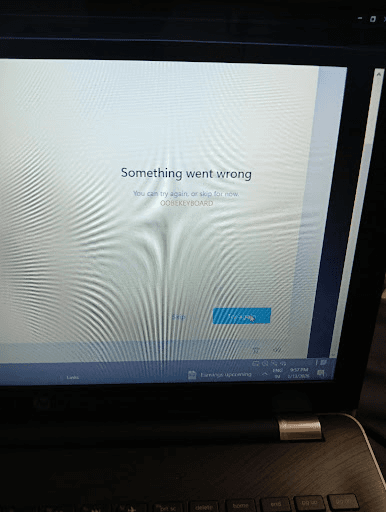
During the "Out of Box Experience" (Windows Setup), the installer got stuck in a loop.Error: "Something went wrong - OOBEKEYBOARD."
Clicking "Try Again" simply reloaded the same error, effectively soft-locking the VM.
🟢 The Command Line Solution
Since the GUI was broken, I had to force a bypass using the hidden administrator console.
Shift + F10
# 2. Execute Bypass Command
oobe\bypassnro
Result: The VM rebooted, bypassed the network check, and allowed me to create a local "Admin" account to finish the setup.
✅ Final Result: Lab Ready
The Virtual Machine is now fully operational and enrolled. It is isolated from my personal host machine, meaning I can safely push experimental Intune security policies without risk.